Guides / PNG to SVG for Stickers (print then cut)
PNG to SVG for Stickers (print then cut)
PNG is the friendliest input for tracing: lossless pixels, crisp edges and often a transparent background, so the outline CutVector finds is exactly the outline you drew. Stickers need two things: the full-color art and a cut line around it. The Sticker preset keeps up to 12 colors and adds a smooth, magenta offset contour around the whole design.
Convert your PNG now — free Runs in your browser. Files never leave your device.

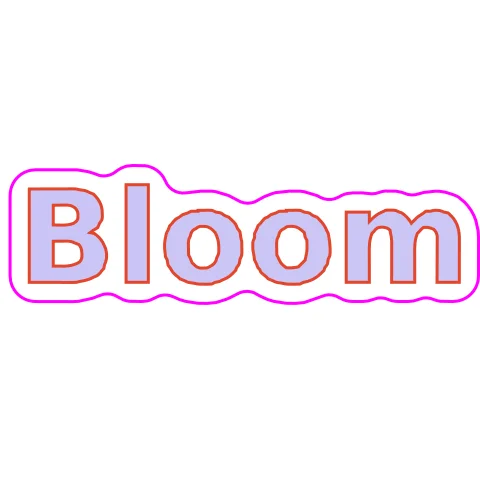
Transparent-background lettering gets a uniform white border, ready for Print Then Cut. The border follows the letters closely, filling the small gaps between them so the sticker peels as one piece. A 3 mm offset hides minor print-to-cut misalignment.
How to convert PNG to SVG for Stickers (print then cut)
- Open CutVector and drop your PNG file (or several at once). If your PNG has a transparent background, leave it — CutVector flattens transparency to white and ignores it automatically.
- Pick the Sticker preset — color art plus a print-then-cut contour.
- Switch to the Cut lines view and check every outline is where you expect. Adjust Smoothing, Ignore specks or Min hole area if needed.
- Set Output width to the finished size, then download the SVG.
- Import the SVG into Design Space or Silhouette Studio, set the art layers to Print and the magenta “cut-contour” layer to Cut, then print and cut.
Recommended settings
| Preset | Sticker |
|---|---|
| Sticker contour | 2–4 mm white border |
| Colors | 4–8 for flat illustration styles |
Works great for
- Die-cut vinyl stickers
- Planner stickers
- Labels for handmade products
Not a good fit
- Busy photos with no clear edge
- Designs where elements are far apart (each becomes its own sticker)
FAQ
Will Cricut Print Then Cut use the contour line?
Yes. Set the magenta cut-contour layer to Cut and the art layers to Print; Design Space then prints with registration marks and cuts the contour.
Can I make the contour follow each letter separately?
Set Sticker contour smaller (1–1.5 mm) so it does not bridge the gaps between letters; each letter then becomes its own sticker.
How wide should the sticker border be?
2–3 mm hides small print-to-cut misalignment; 4 mm or more gives the bold “die-cut” look.
Why is the contour one shape around everything?
Elements closer than twice the border width merge into one sticker. Move parts further apart in your image if you want separate stickers.
Does a transparent PNG background matter?
No. Transparent pixels are treated as empty space, so only your artwork becomes cut paths. You never get a rectangle around the design.
What resolution should my PNG be?
Aim for at least 800 px on the long side. Small PNGs (under 300 px) trace with wobbly edges because there are too few pixels to describe a smooth curve.
Cricut and Design Space are trademarks of Cricut, Inc.; Silhouette, Glowforge, xTool and LightBurn are trademarks of their respective owners. CutVector is an independent tool and is not affiliated with or endorsed by them.
Only convert images you own or have permission to use. See Terms.