Guides / JPG to DXF for Silhouette
JPG to DXF for Silhouette
Scanned drawings and old logos are often only available as JPG. CutVector turns them into clean, closed DXF polylines ready for laser, CNC router or plasma software. Silhouette Studio Basic edition opens DXF for free, while SVG import needs Designer Edition or higher — CutVector exports both so you are covered either way.
Convert your JPG now — free Runs in your browser. Files never leave your device.

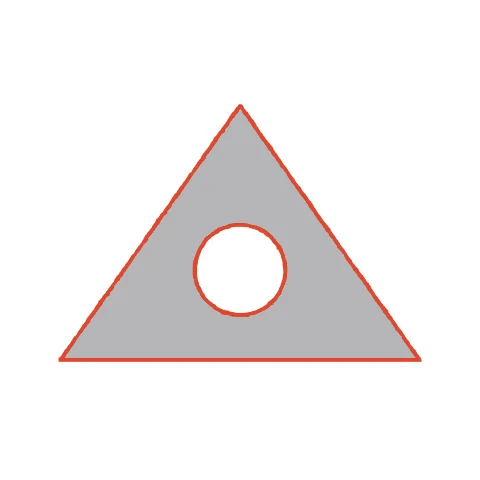
A blurry scan like this still traces into two clean DXF shapes — the triangle and its circular cut-out. Blur is handled by the automatic threshold: the edge is placed where the grey ramp crosses the midpoint, so the triangle’s corners stay sharp. The circular cut-out remains a separate inner contour in the DXF.
How to convert JPG to DXF for Silhouette
- Open CutVector and drop your JPG file (or several at once). For scans, crop away the paper edge first and use a single-color preset; automatic threshold separates ink from paper.
- Pick the Cricut cut preset — clean layered shapes for vinyl & htv.
- Switch to the Cut lines view and check every outline is where you expect. Adjust Smoothing, Ignore specks or Min hole area if needed.
- Set Output width to the finished size, then download the DXF.
- In Silhouette Studio use File → Open (or Import) and pick the DXF or SVG. DXF shapes come in as cut lines; set the cut style to “Cut” if needed.
Recommended settings
| Preset | Cricut cut (works the same for Silhouette) |
|---|---|
| Format | DXF on Basic Edition, SVG on Designer+ |
| Smoothing | 6–8 for fewer nodes and cleaner blade paths |
Works great for
- Cameo and Portrait vinyl projects
- Stencils for painting
- Paper crafts and card toppers
Not a good fit
- Detailed photos
- Tiny text under 5 mm tall
FAQ
Can I open the DXF in Silhouette Studio Basic?
Yes, Basic Edition opens DXF directly. That is the main reason to choose DXF over SVG for Silhouette.
Why does Silhouette Studio show the hole as a separate shape?
DXF has no fill rule, so holes are separate closed polylines. Select both, right-click and choose Make Compound Path to treat them as one piece.
Do I need Silhouette Designer Edition?
Not with CutVector: Basic Edition opens DXF files. Export DXF and open it with File → Open.
My DXF opened in Silhouette Studio at the wrong size.
In Preferences → Import, make sure DXF units are millimeters, then re-open the file.
Will the DXF have open or broken paths?
No. Every shape is exported as a closed polyline, which is what CAM software needs to calculate fills, offsets and cut order.
How do I get fewer nodes in the DXF?
Increase Smoothing. Fewer nodes means smoother motion on the machine and smaller files, at the cost of slightly rounder corners.
Cricut and Design Space are trademarks of Cricut, Inc.; Silhouette, Glowforge, xTool and LightBurn are trademarks of their respective owners. CutVector is an independent tool and is not affiliated with or endorsed by them.
Only convert images you own or have permission to use. See Terms.