Guides / JPG to DXF for Laser cutters (xTool, LightBurn)
JPG to DXF for Laser cutters (xTool, LightBurn)
Scanned drawings and old logos are often only available as JPG. CutVector turns them into clean, closed DXF polylines ready for laser, CNC router or plasma software. Diode and CO2 laser software — LightBurn, xTool Creative Space, LaserGRBL — needs closed, non-overlapping shapes to cut cleanly and to fill evenly when engraving.
Convert your JPG now — free Runs in your browser. Files never leave your device.
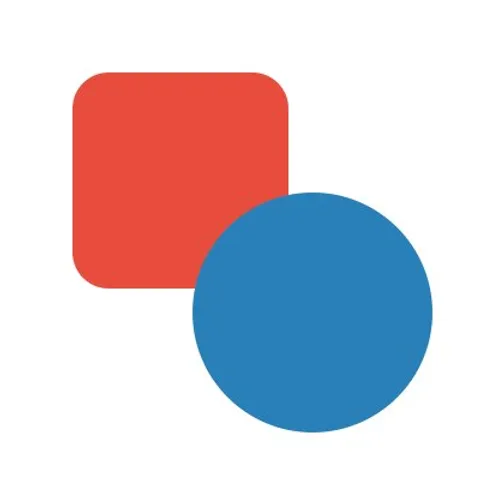
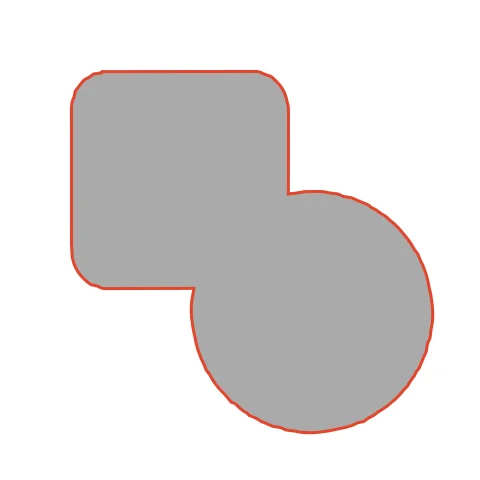
Two overlapping shapes, welded, become one continuous cut path — no internal slices across the overlap. The red square and blue circle merge into a single path, so the laser never cuts the overlap twice. Exporting without Weld would give two overlapping parts instead.
How to convert JPG to DXF for Laser cutters (xTool, LightBurn)
- Open CutVector and drop your JPG file (or several at once). For scans, crop away the paper edge first and use a single-color preset; automatic threshold separates ink from paper.
- Pick the Laser cut preset — one welded cut path, kerf-compensated.
- Switch to the Cut lines view and check every outline is where you expect. Adjust Smoothing, Ignore specks or Min hole area if needed.
- Set Output width to the finished size, then download the DXF.
- In LightBurn use File → Import (Ctrl+I); in xTool Creative Space drag the file onto the canvas. Assign the layer to Cut or Fill and set power/speed.
Recommended settings
| Preset | Laser cut (welded, kerf-compensated) or Laser engrave |
|---|---|
| Kerf | Measure: cut a 20 mm square, subtract its measured size |
| Smoothing | 7+ for smooth motion and faster cuts |
Works great for
- Plywood and MDF cut-outs
- Acrylic signs and inlays
- Leather patches
- Engraved slate and tumblers
Not a good fit
- Photos (use your laser software’s dithering instead)
- Shapes thinner than your kerf
FAQ
Why does LightBurn cut through the middle of my overlapping shapes?
Because they were separate shapes. Turn on Weld in CutVector so overlaps fuse into one outline before export.
Can I keep the two shapes as separate colors for engraving?
Yes. Turn Weld off and keep Colors at 2; each color becomes its own DXF layer that LightBurn maps to a separate layer.
How do I measure my laser’s kerf?
Cut a 20 mm square from your material and measure it with calipers. If it measures 19.8 mm, your kerf is 0.2 mm — enter that in CutVector.
LightBurn says my shapes are open. What do I do?
CutVector always exports closed shapes. If you edited the file elsewhere, re-export from CutVector, or use Edit → Close Selected Paths in LightBurn.
Will the DXF have open or broken paths?
No. Every shape is exported as a closed polyline, which is what CAM software needs to calculate fills, offsets and cut order.
How do I get fewer nodes in the DXF?
Increase Smoothing. Fewer nodes means smoother motion on the machine and smaller files, at the cost of slightly rounder corners.
Cricut and Design Space are trademarks of Cricut, Inc.; Silhouette, Glowforge, xTool and LightBurn are trademarks of their respective owners. CutVector is an independent tool and is not affiliated with or endorsed by them.
Only convert images you own or have permission to use. See Terms.