Guides / Logo to DXF for Laser cutters (xTool, LightBurn)
Logo to DXF for Laser cutters (xTool, LightBurn)
Cutting a logo from wood, acrylic or metal needs a single continuous outline per piece. CutVector welds the logo, compensates for kerf and exports closed DXF polylines. Diode and CO2 laser software — LightBurn, xTool Creative Space, LaserGRBL — needs closed, non-overlapping shapes to cut cleanly and to fill evenly when engraving.
Convert your Logo now — free Runs in your browser. Files never leave your device.
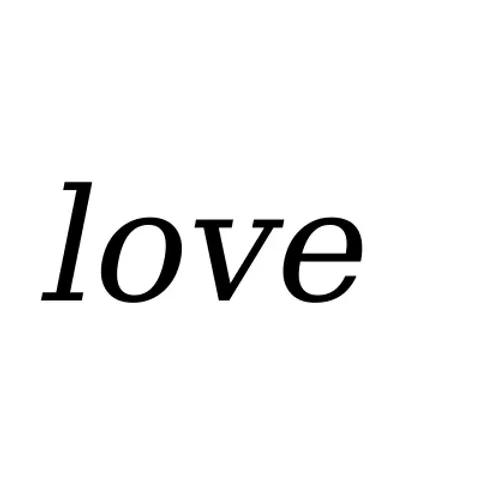
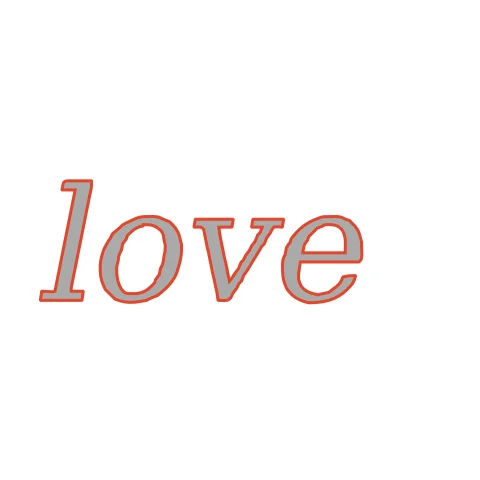
Italic script like this must be welded so the letters cut as one connected word, not five loose pieces. Script letters that overlap fuse into one continuous word, which LightBurn cuts as a single closed shape. The cross-bars stay part of the word instead of separate slivers.
How to convert Logo to DXF for Laser cutters (xTool, LightBurn)
- Open CutVector and drop your Logo file (or several at once). Turn on Weld so overlapping letters fuse into one piece — otherwise each letter falls out separately.
- Pick the Laser cut preset — one welded cut path, kerf-compensated.
- Switch to the Cut lines view and check every outline is where you expect. Adjust Smoothing, Ignore specks or Min hole area if needed.
- Set Output width to the finished size, then download the DXF.
- In LightBurn use File → Import (Ctrl+I); in xTool Creative Space drag the file onto the canvas. Assign the layer to Cut or Fill and set power/speed.
Recommended settings
| Preset | Laser cut (welded, kerf-compensated) or Laser engrave |
|---|---|
| Kerf | Measure: cut a 20 mm square, subtract its measured size |
| Smoothing | 7+ for smooth motion and faster cuts |
Works great for
- Plywood and MDF cut-outs
- Acrylic signs and inlays
- Leather patches
- Engraved slate and tumblers
Not a good fit
- Photos (use your laser software’s dithering instead)
- Shapes thinner than your kerf
FAQ
How do I cut a connected word sign from acrylic?
Use a script font where letters overlap, turn on Weld, set kerf for acrylic (~0.1 mm on CO2), and export DXF.
Does the cut order matter for a word sign?
Yes: enable “Cut inner shapes first” in LightBurn so holes inside letters are cut before the outer outline releases the piece.
How do I measure my laser’s kerf?
Cut a 20 mm square from your material and measure it with calipers. If it measures 19.8 mm, your kerf is 0.2 mm — enter that in CutVector.
LightBurn says my shapes are open. What do I do?
CutVector always exports closed shapes. If you edited the file elsewhere, re-export from CutVector, or use Edit → Close Selected Paths in LightBurn.
How do I keep a logo in one piece when cutting it out?
Enable Weld and make sure letters touch or overlap in the source image. Floating elements (like the dot of an i) will still be separate parts — add a bridge in your design if needed.
Can I engrave the logo instead of cutting it?
Yes. Use the Laser engrave preset; the same closed shapes become fill areas in LightBurn or xTool Creative Space.
Cricut and Design Space are trademarks of Cricut, Inc.; Silhouette, Glowforge, xTool and LightBurn are trademarks of their respective owners. CutVector is an independent tool and is not affiliated with or endorsed by them.
Only convert images you own or have permission to use. See Terms.